
Wushu Taolu scoreboard (Multiple device input)
Our scoreboard for Wushu Taolu allows for (but do not require) multiple devices inputting scores in real time sync.
The input can be made from mobile/tablet or PC depending on what you prefer. All devices need internet access in order to deliver scores.
Setting up the bracket
1. Choose "Voting/Judges score"
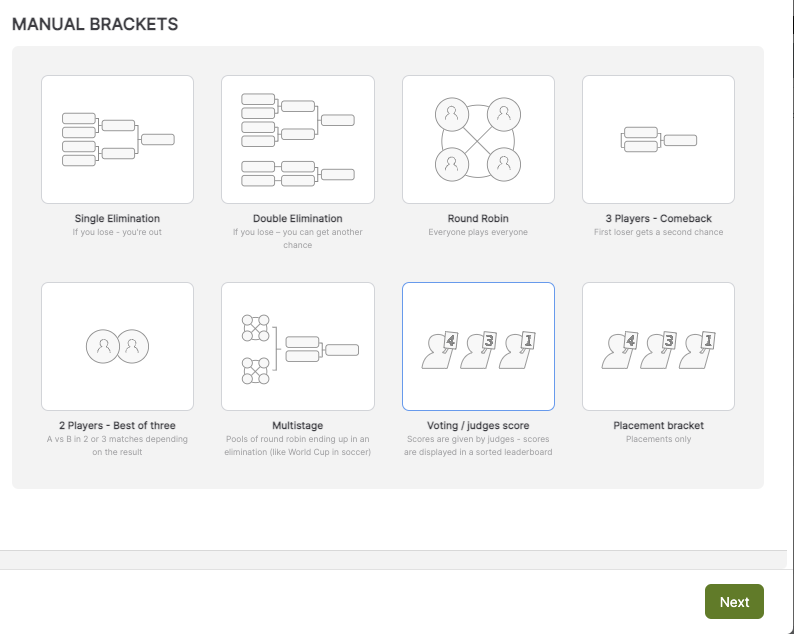
2. As scoreboard, choose Wushu Taolu IWUF Rules. Here you have multiple options on how you want to set up the bracket.
When the brackets are created you can open up the scoreboard from the bracket itself...
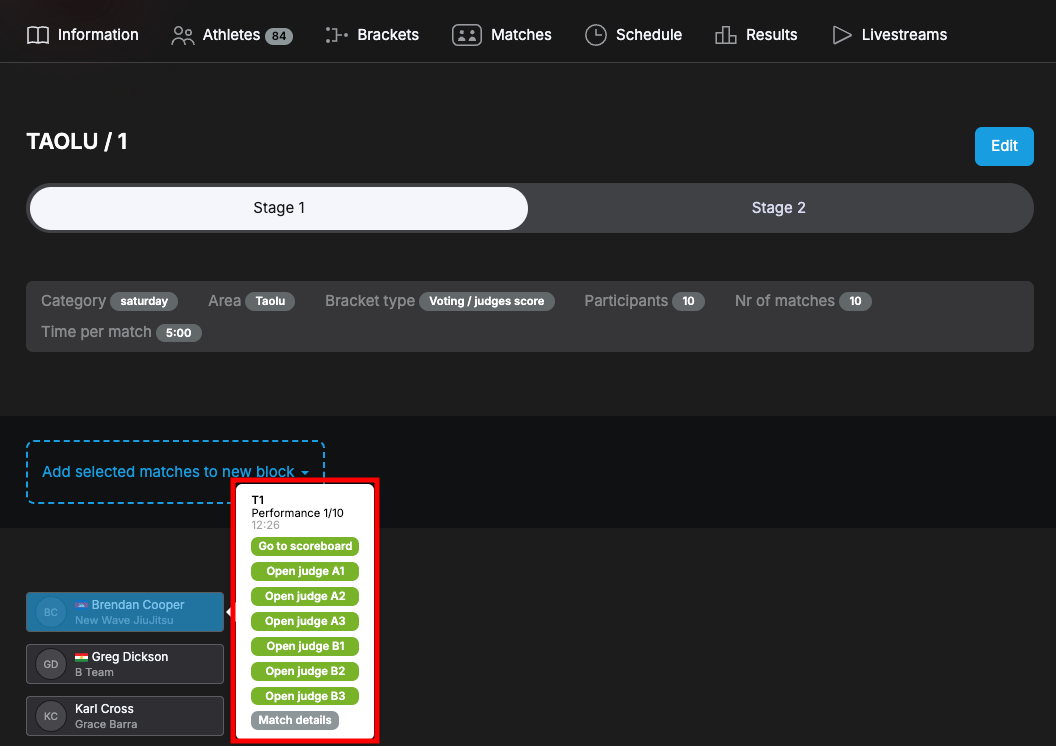
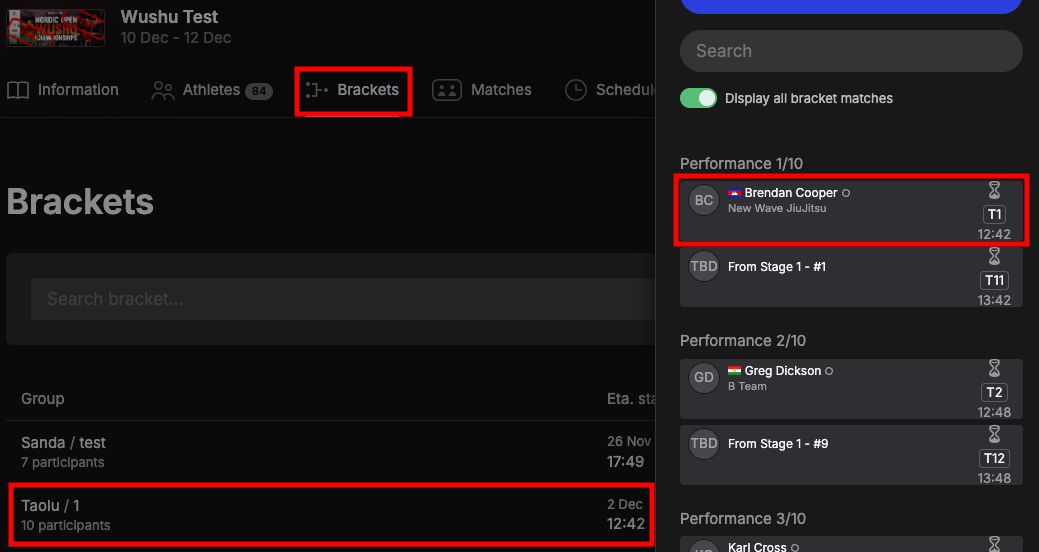
... from Brackets by clicking the name of the bracket and then the match...
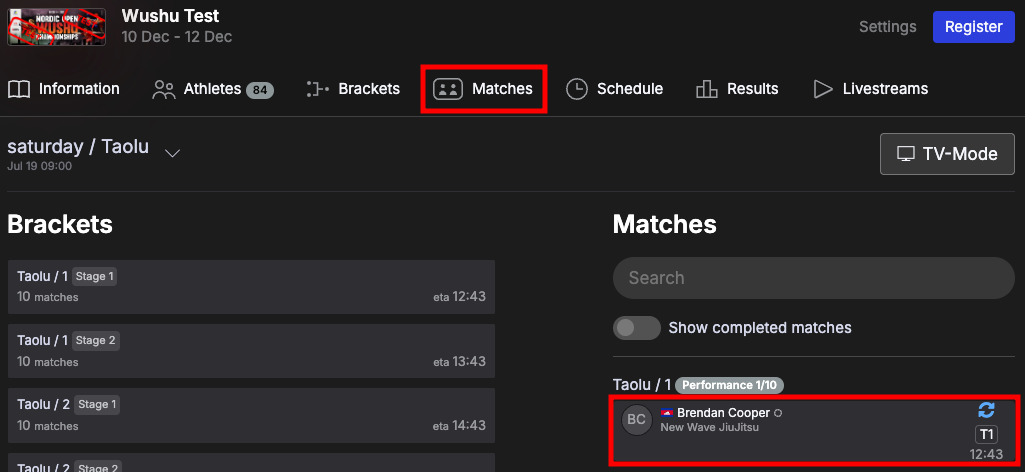
... or from the Current matches view. Go to Matches - Current matches. Click on View mat to go to the correct mat and click on the match in the matches list:
The head judge scoreboard can also be opened from the desktop app!
Scoring
With the multiple device input each match shows up with different link options:
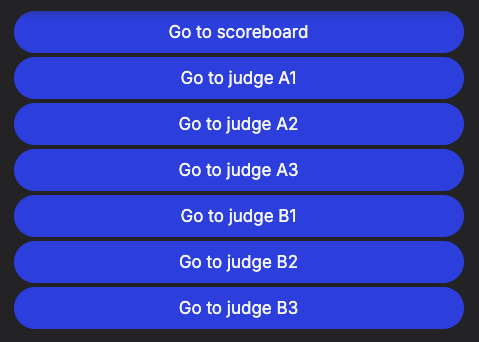
- Go to scoreboard - This links to the main table view.
- Go to judge - This link directs judges to their respective scoring forms).
For example, if you are Judge A1, click the corresponding link to access your form and enter your scores.
Main table
This is where the head judge controls everything. Here is an overview and explanation of the different features:
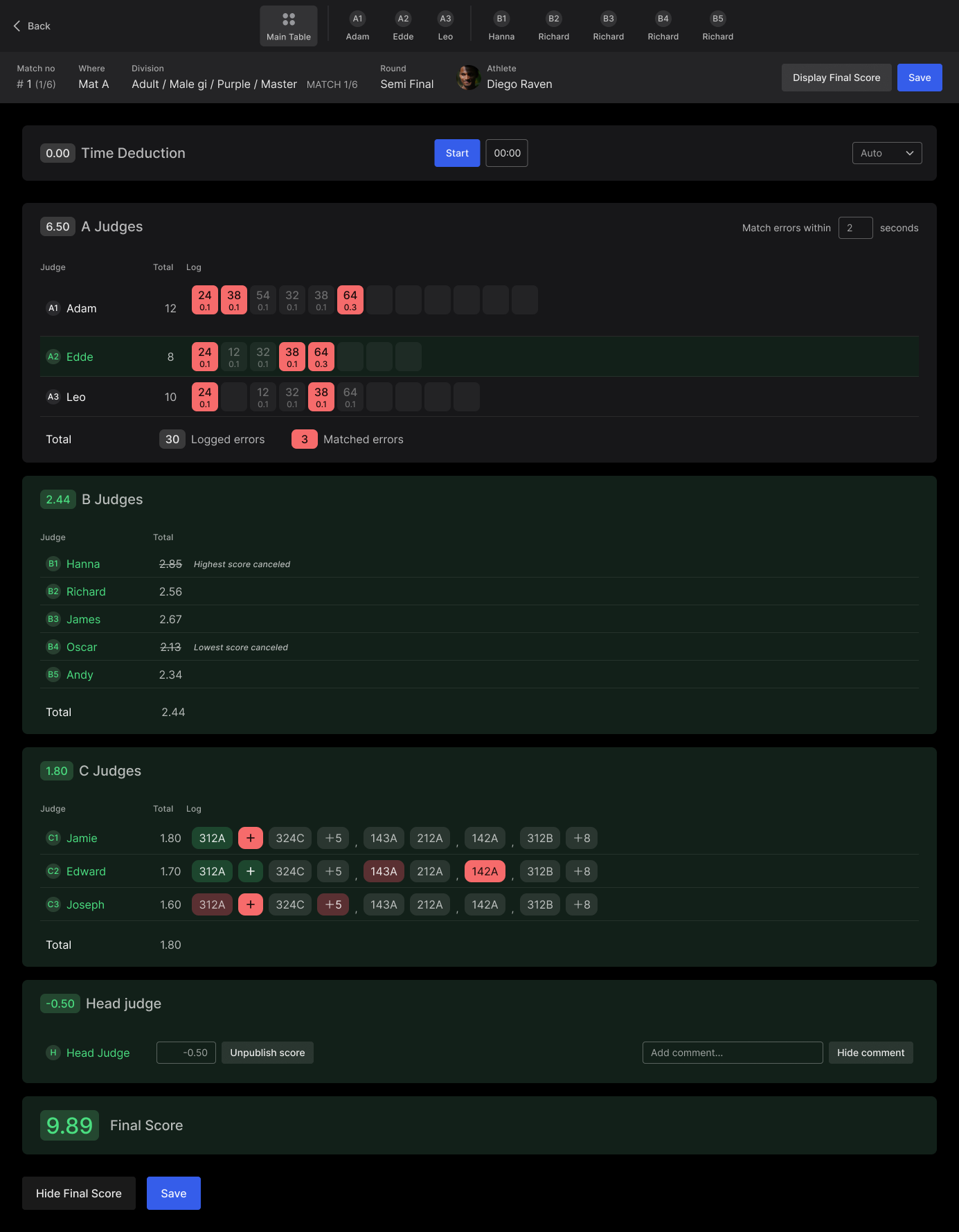
Top section - Shows the different judges. A green dot indicates that they are connected and live on their input device.
From the main table, you can click on any judge to correct scoring errors, un-publish a score, or edit their name.
Match info - Short info about the match, bracket and athlete. Once the match is complete, this is also where you display the final score and save the match (or at the bottom of the page under Final score).
When all scores are submitted and ready to present, Display Final Score will turn blue. Click it to display the score on the spectator view available in the desktop app.
Save the results to continue to the next match!
Time deduction - Start the clock to begin the match! This will activate the judges’ input devices and allow them to start scoring in real time.
Based on the settings chosen when the bracket was created, you will see an indicator showing whether the athlete is within the allowed time range or not. If set to Auto, the deduction is calculated automatically as time progresses. To handle it manually, simply switch from Auto to Manual and enter the deduction.
A Judges - This section displays the score given by the individual A judges and their total score.
All errors logged by the A judges are displayed. Errors that are matched across judges will automatically be highlighted in red. Each entry shows the deduction code and the corresponding point deduction.
Use the top-right settings to adjust the allowed timeframe for matching errors.
When a judge publishes their score, their row will turn green. Once all judges have submitted their scores, the total A judges section will turn green.
B Judges - This section displays the score given by the individual B judges and their total score.
When a judge publishes their score, their row will turn green. Once all judges have submitted their scores, the total B judges section will turn green.
C Judges - This section displays the score given by the individual C judges and their total score.
All errors logged by the C judges are displayed. Errors that are approved will show green, and errors that are denied will show red. Matched errors across a majority of judges will automatically be highlighted in red.
When a judge publishes their score, their row will turn green. Once all judges have submitted their scores, the total C judges section will turn green.
Head judge - This is where the Head Judge submits their score.
The score can be both positive or negative. A comment can also be added, and it's possible to show it once the Final Score has been published.
Final Score - This section displays the combined score from all judges.
Once the match is complete, this is also where you display the final score and save the match (or in the Match info section).
When all scores are submitted and ready to present, Display Final Score will turn blue. Click it to display the score on the spectator view available in the desktop app.
The Final score will turn green to indicate it has been published.
Save the results to continue to the next match!
A Judges
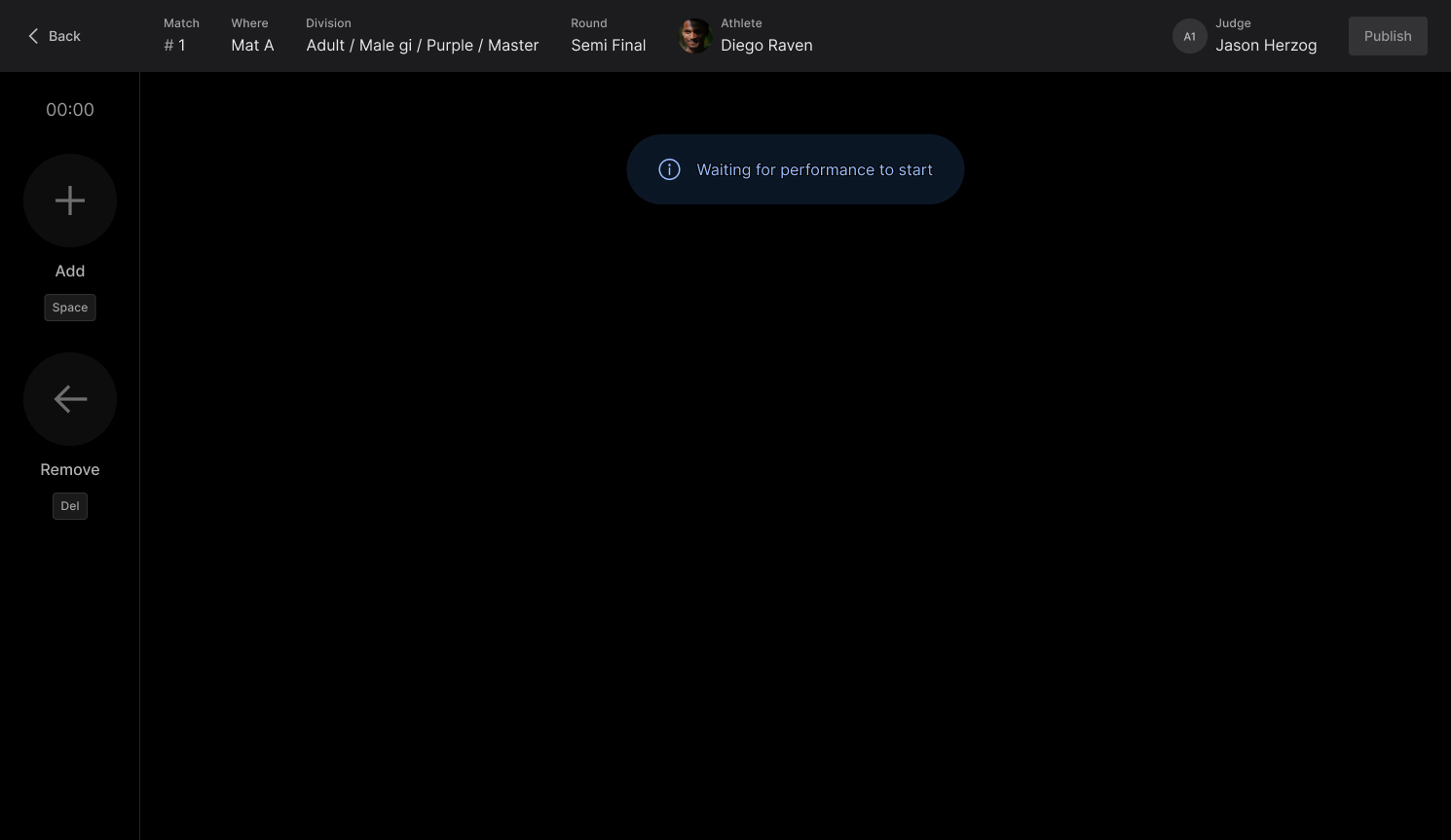
Each A judge has their personal input device. Until the Main Table starts the clock, the device will display “Waiting for performance to start”, and scoring will be disabled.
Here is an overview of the features available on the A Judge input device once the match has started:
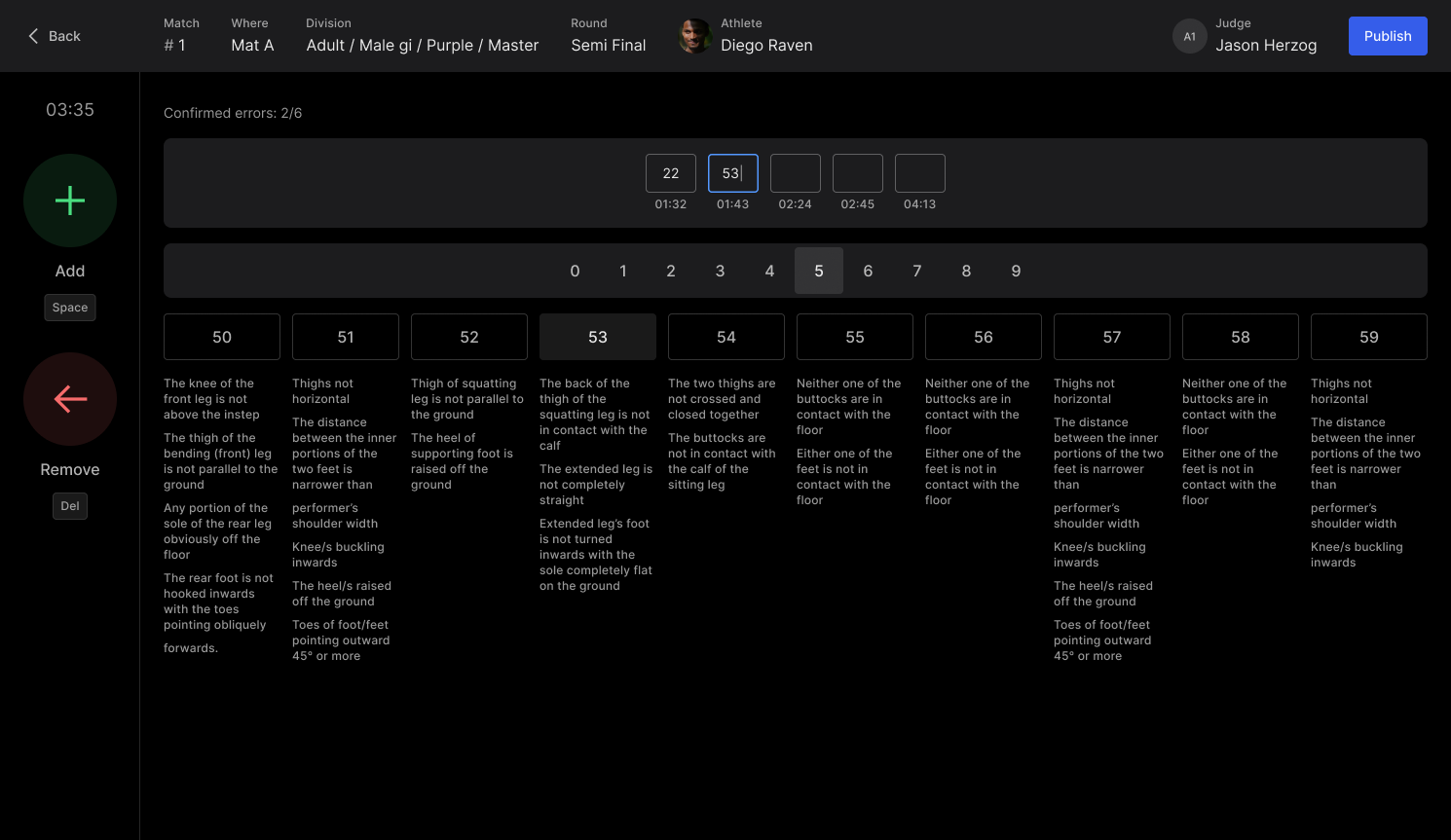
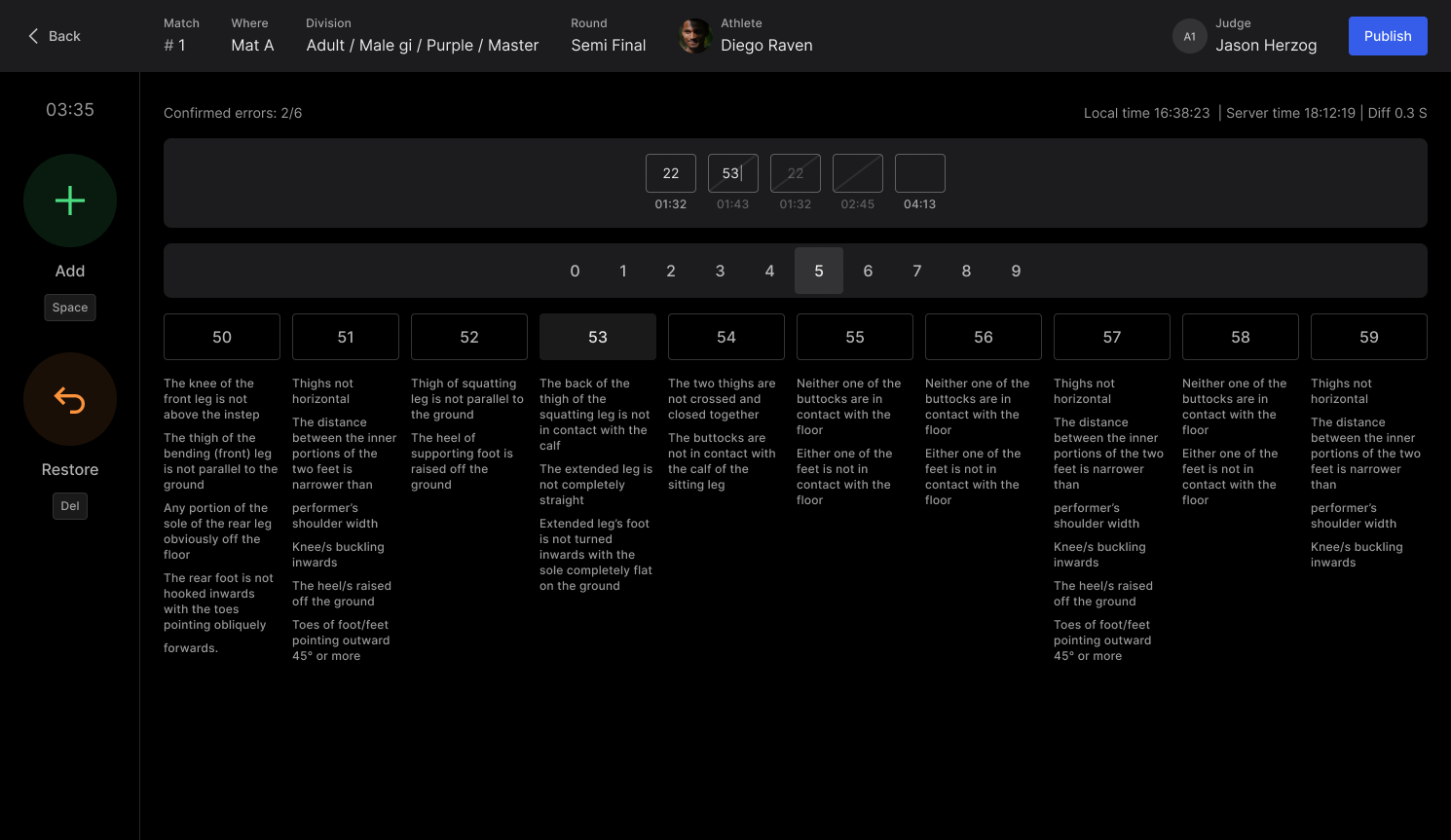
Press Add (or hit the Spacebar as a shortcut) to log an error. This will open a box where you can enter the deduction code. The timestamp for when the error was added appears below the box.
To select a deduction code, either click 0–9 on the screen or type 0–9 on your keyboard to bring up the available options. Click the desired code to apply it, or simply type it in and press Enter. If an invalid code is entered, the box will turn red.
Once the code is added it will be confirmed. The total number of errors and confirmed errors is displayed in the top left corner.
To remove an error, click the error box you want to delete, then press Remove (or press the Delete key or type 00 as a shortcut). The error will be crossed out to indicate it has been removed.
If you need to undo the action, click Restore (or the Delete key or type 00 as a shortcut) to bring it back.
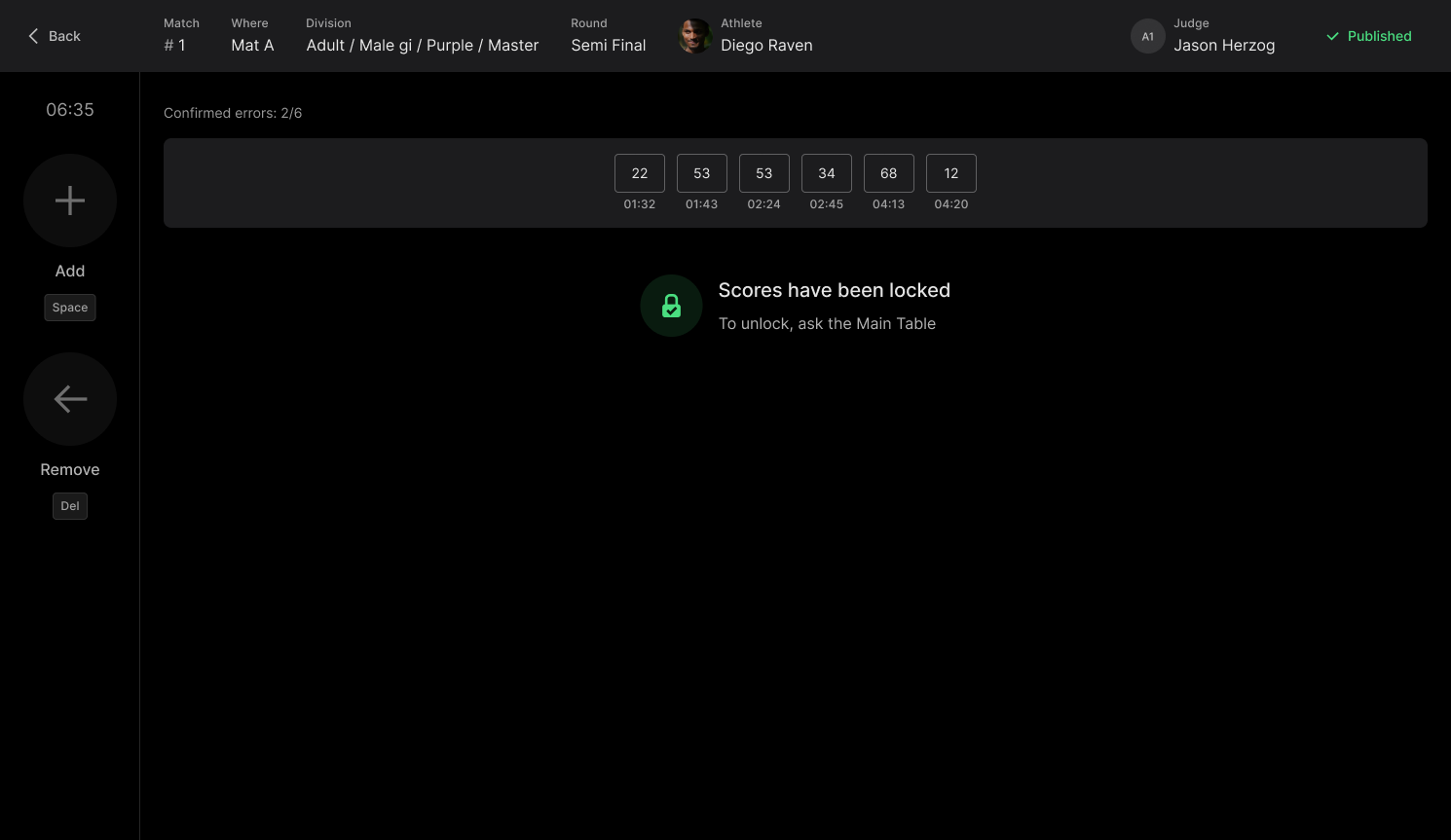
Once scoring is complete, click Publish to submit your scores. The scores are now locked and can only be edited if the Main Table unlocks them.
When Main table opens up the next match you will automatically follow along to the next match within 5 seconds, unless you manually click Follow main table!

B Judges
Each B judge has their personal input device. Until the Main Table starts the clock, the device will display “Waiting for performance to start”, and scoring will be disabled.
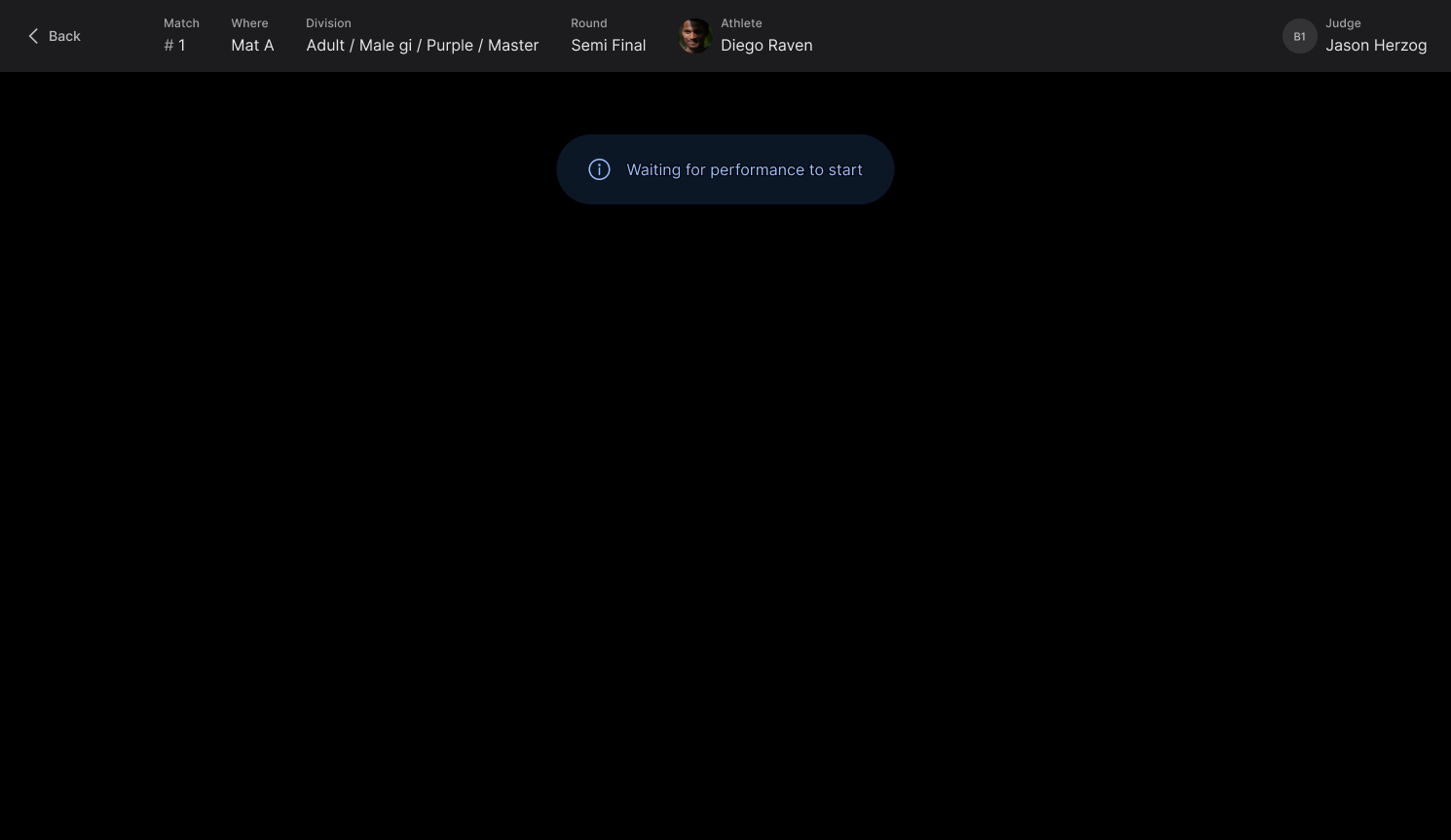
When the match has started, it's possible to input the score.
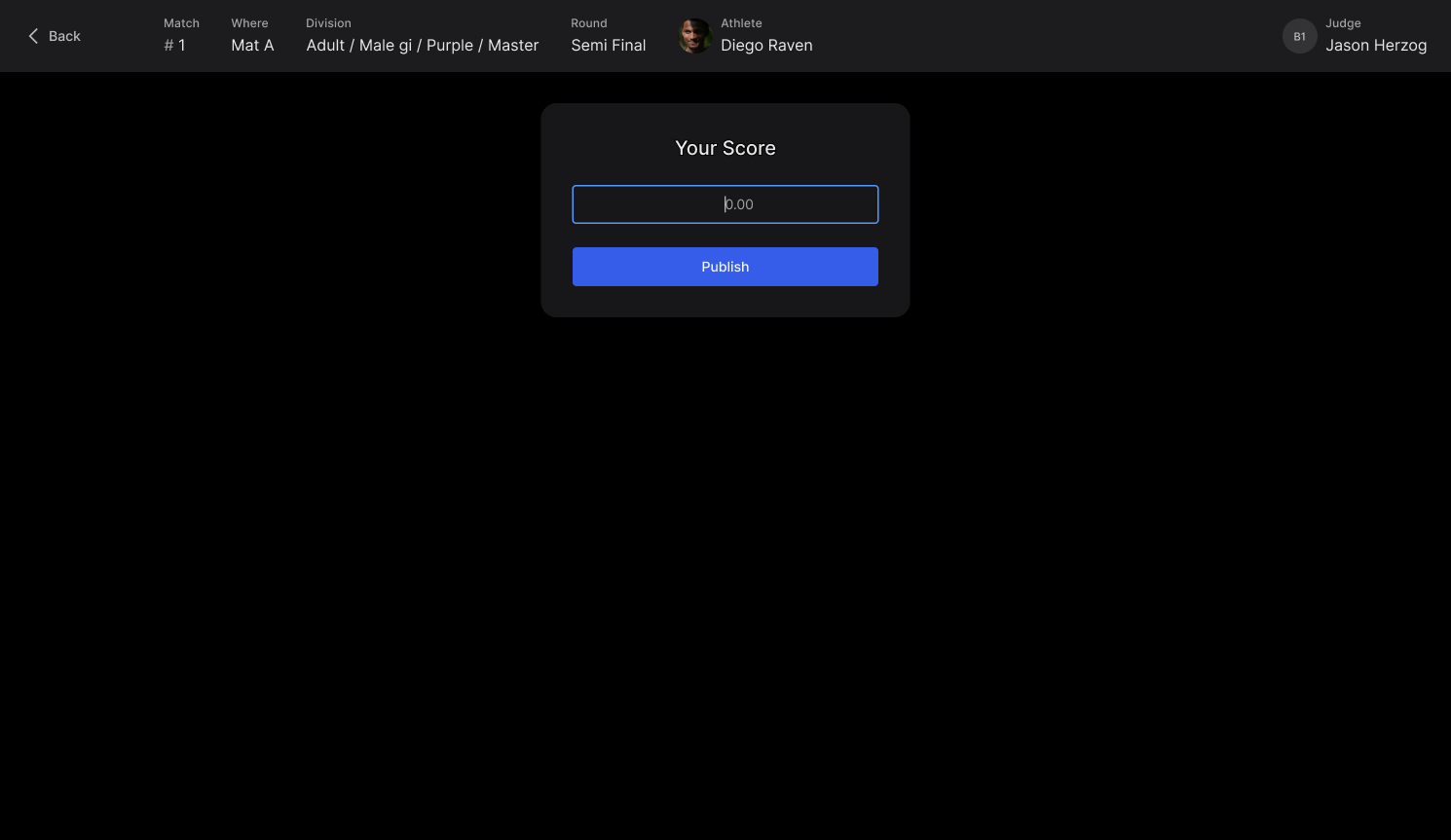
Once scoring is complete, click Publish to submit your scores. The scores are now locked and can only be edited if the Main Table unlocks them.
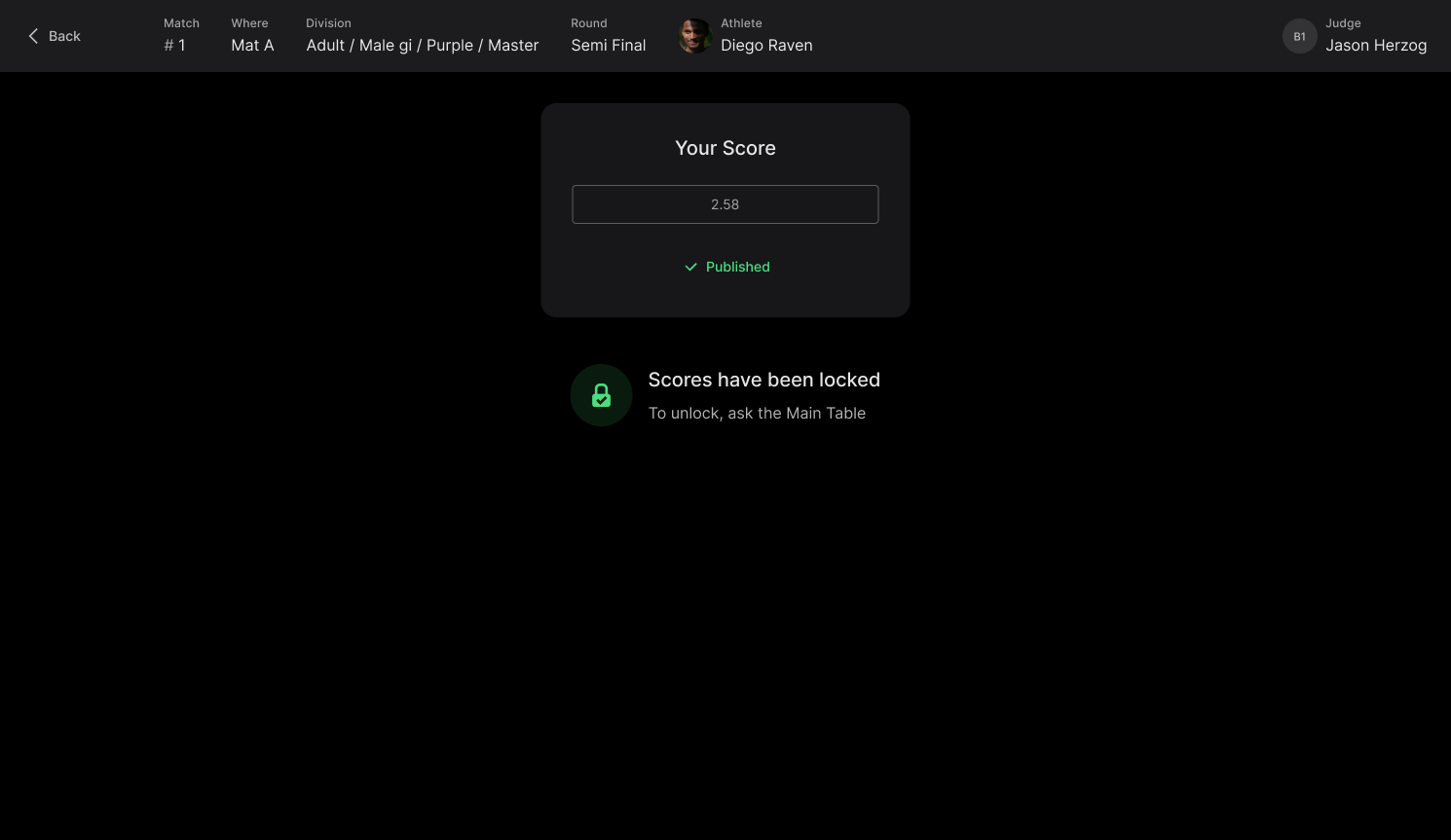
When Main table opens up the next match you will automatically follow along to the next match within 5 seconds, unless you manually click Follow main table!
C Judges
Each B judge has their personal input device. Until the Main Table starts the clock, the device will display “Waiting for performance to start”, and scoring will be disabled.
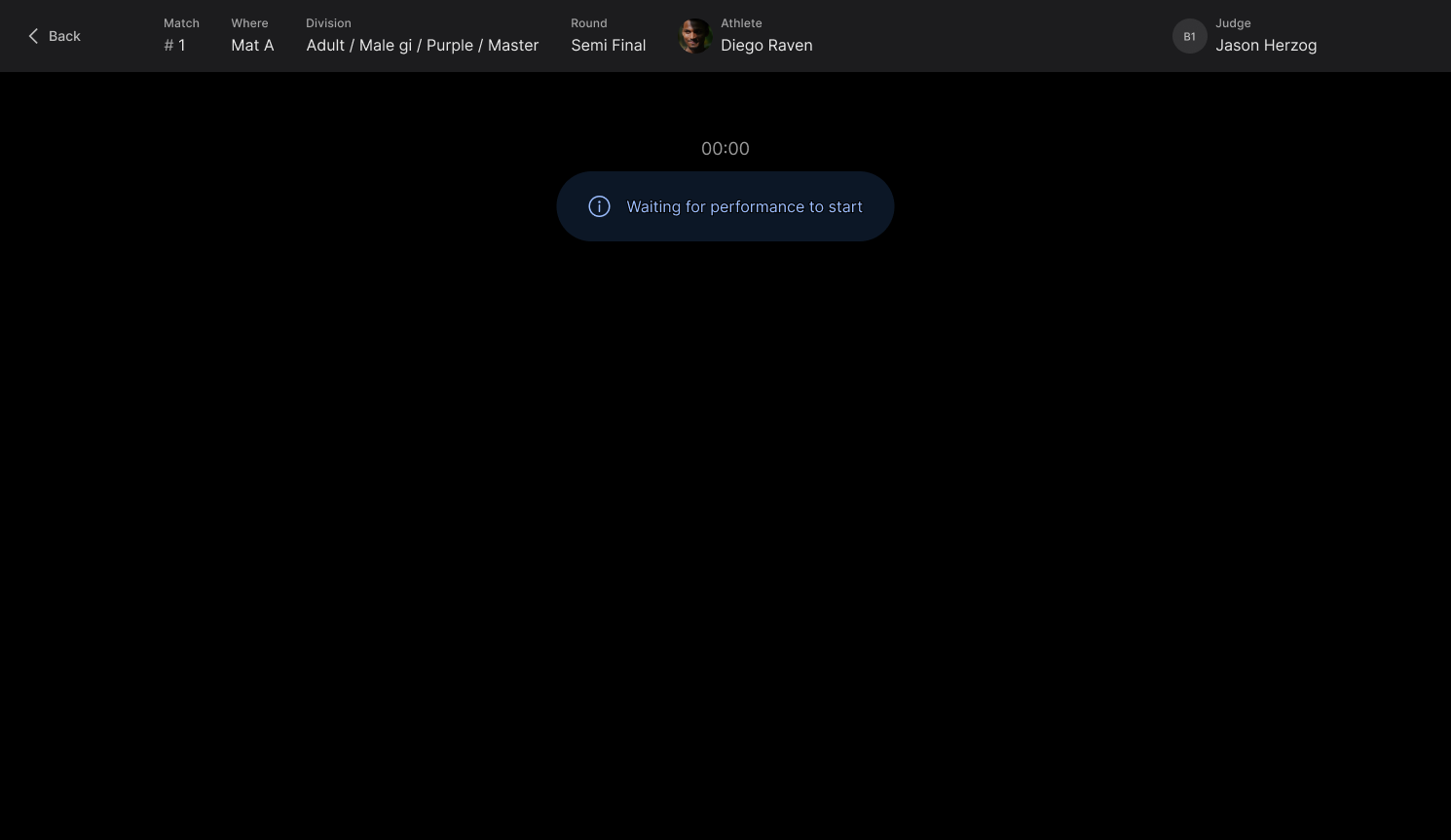
Here is an overview of the features available on the A Judge input device once the match has started:
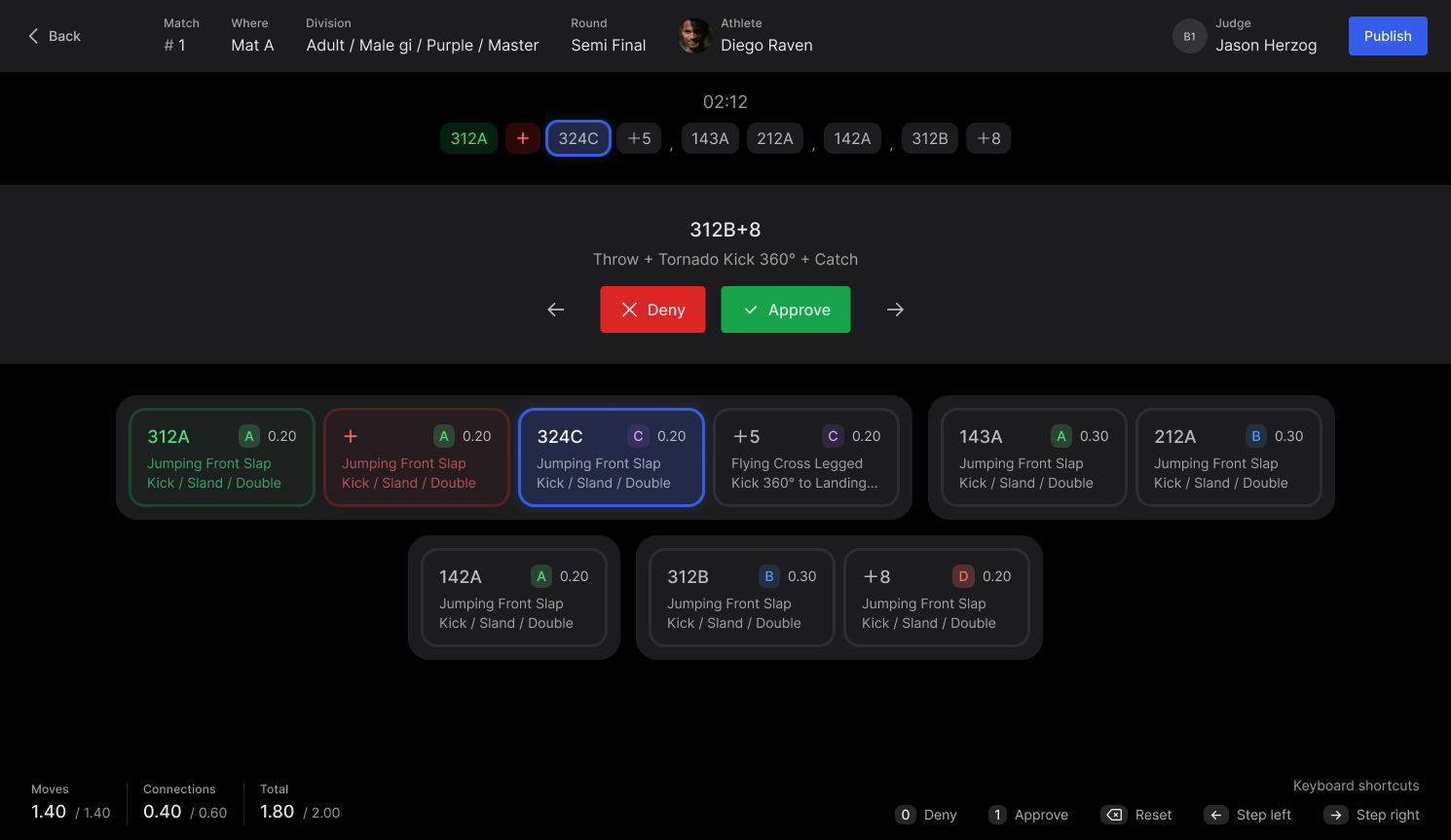
The top section shows a quick overview of the Nandu combination.
In the middle you have a description of the current Nandu code and the option to Deny or Approve it.
Below this section you will find all Nandu combinations and codes listed in detail, along with their points. A green code has been approved, a red code has been denied, and a blue border indicates the code currently being scored.
At the bottom of the page you'll find an overview of the combination's value, broken down by moves and connections as well as the total. Once the combination has been scored, this section will display the score given by this judge.
Here you also find all the different shortcuts to easily navigate through the Nandu combination.